Support based on the latest version of My Recipe Box
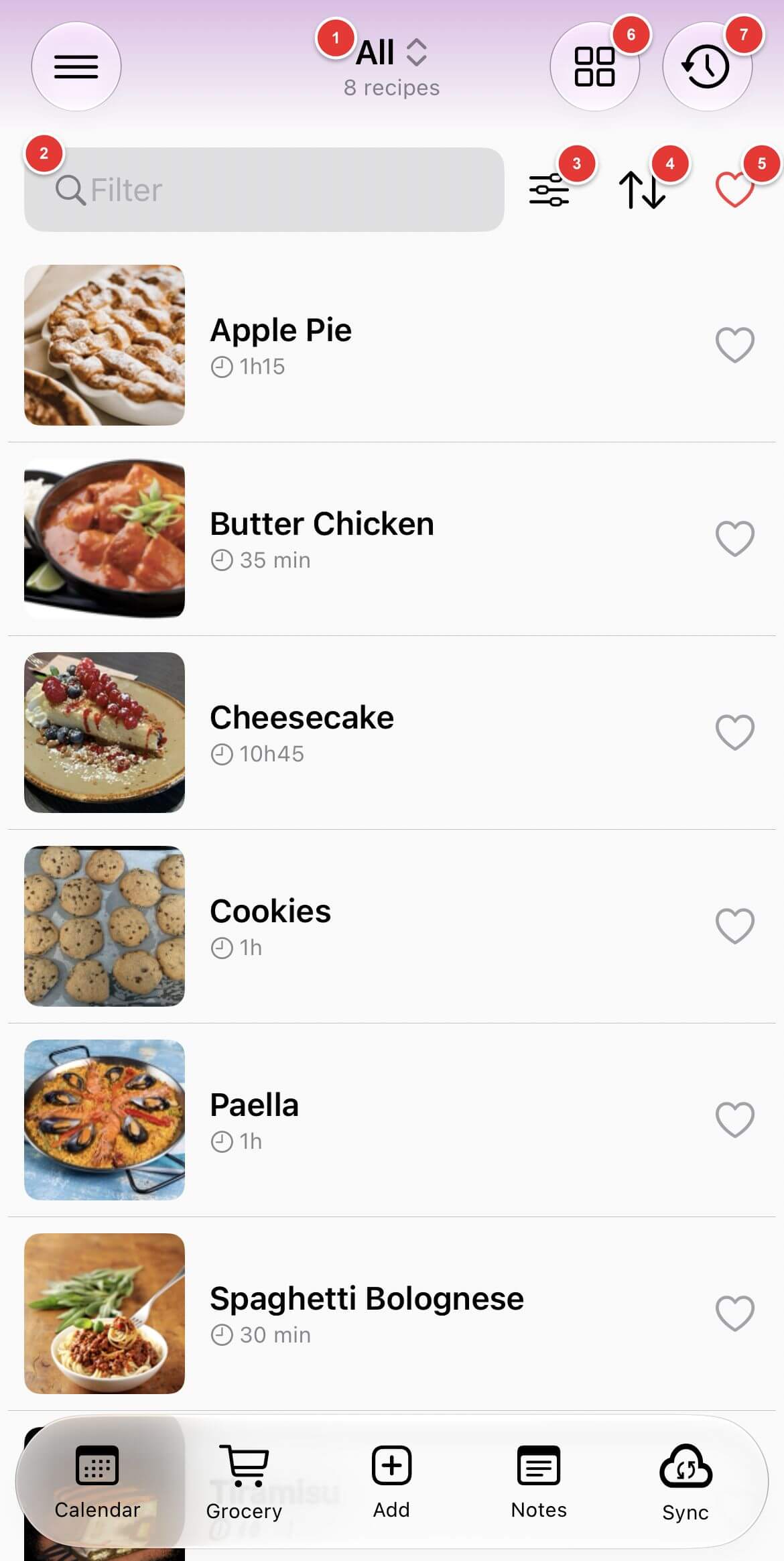
- Filter by category
- Filter by title
- Access the advanced filters
- Sort your recipes by title, best rating, total time (ascending or descending), last modified or oldest first
- Filter by favorite recipes
- Show your recipes as a list, a grid or a compact list, or select several recipes
- Recently viewed recipes
There are 3 ways:
Search for a recipe from the app. Tap"Add" in the bottom bar, then "Add from Internet". Enter a recipe name, choose your search engine (Google, Bing or DuckDuckGo) and tap the arrow. Open a recipe from the results, then tap the "Import" button at the bottom of the screen.
Paste the link of the recipe. Tap"Add", then "Add from Internet", paste the address in the "Paste a recipe's link (URL)" field and tap the arrow.
Share the recipe from your browser or from another app, such as Instagram, TikTok, Facebook or YouTube, to My Recipe Box.
Some websites do not allow the different elements of a recipe to be identified so that it can be correctly imported into the application.
If the website or the social network requires you to sign in to view the recipe, open the page in the app and sign in before importing it:
- Tap"Add", then "Add from Internet"
- Paste the address of the recipe in the "Paste a recipe's link (URL)" field and tap the arrow: the page opens in the app
- Sign in to the website
- Tap the "Import" button at the bottom of the screen
My Recipe Box automatically recognizes websites that adopt this specification: (https://schema.org/Recipe).
In any case, if the website is not compatible, you can use recipe generator.
With Premium, artificial intelligence restructures recipes that are imported poorly structured (ingredients and steps mixed up or missing).
You can also send us the link of the recipe so that we can check the website: [email protected] (Android) or [email protected] (iOS).
For Webmasters
If you want to add My Recipe Box support for your site, just implement the specification in your HTML code.
Tap"Add", then "Add a recipe manually".
Only the title is mandatory. Fill in the fields you want: ingredients, directions, preparation and cooking times, yield, notes, categories, tags, rating…
To add photos, take a picture or select one from your gallery. A recipe can have several photos.
If you leave the total time empty, it is calculated from the preparation, cooking and inactive times.
In the description, ingredients, directions and notes, select some text to format it with the toolbar: bold, italic, underline, strikethrough or color.
Tap "Save" when you are done. If you leave the screen without saving, the app asks whether you want to save your recipe.
Categories and tags
A recipe can have several categories and several tags. Choose them when you add or edit a recipe.
To manage them, open the menu at the top left of the home screen, then "Manage categories" or "Manage tags": you can add, rename, delete or reorder them. Deleting a category or a tag does not delete its recipes.
Advanced filters
On the home screen, tap the advanced filters icon (also available in the menu) to combine several criteria:
- "I want the following ingredients" and "I don't want the following ingredients": by default, recipes must contain all the ingredients you want. Check "Inclusive (OR)" to show recipes containing at least one of them, and "Exact term" to search for whole words only.
- The same choices for categories and tags.
- "Search everywhere": searches all the fields of the recipe (title, ingredients, directions, notes…).
- Favorites and total time.
- "Duplicate?": shows the recipes that have the same title, to find duplicates.
The number of matching recipes is updated as you go: tap "Show … recipes" to see them. "Reset" clears all the criteria.
Open the recipe and tap the "Adjust quantities" icon, next to the ingredients.
Enter the new yield (or use the − and + buttons), or a number in "Multiply by" or "Divide by", then tap "Validate". The quantities of the ingredients and the yield are recalculated.
This change only applies to the display: the saved recipe is not modified.
Tap "Calendar" in the bottom bar to see the meals of the week. Use "Previous week" and "Next week", or tap the dates to choose another period.
To add a meal, open a recipe and tap "Add to calendar", or tap + next to a day in the calendar. Choose the date, the meal (breakfast, lunch, dinner or other) and the yield; you can also add notes. From the calendar, the title field suggests your recipes as you type, and you can also enter a meal that is not a recipe.
Open the menu of a meal to edit, move, duplicate or remove it.
The cart icon adds the ingredients of the planned recipes to your shopping list.
A calendar widget lets you see your meals on your phone's home screen.
Tap "Grocery" in the bottom bar to see your shopping lists. You can create several lists ("New shopping list"), and rename, duplicate or delete them.
To add the ingredients of a recipe, open it and tap the cart icon next to the ingredients. Choose the list (or create a new one), check the ingredients to buy, or all of them with the box at the top, then tap "Validate". From the calendar, the cart icon adds the ingredients of the planned recipes.
In a list, type an item in the "New product" field and tap + to add it. Drag items to change their order.
Tap an item to check it when it is in your cart. The menu of the list lets you "Uncheck all items", "Delete checked items", "Sort alphabetically" or "Empty shopping list", and share the list.
In a recipe, tap "Share" to send it as text, or "Share with pictures" to include its photos.
"Share between users" sends the recipe as a .rtk file: the person who receives it opens the file with My Recipe Box to add the recipe to their app, with its photos.
To share several recipes at once, select them on the home screen.
All the main features of the app are free. The Premium version adds:
- No ads.
- Synchronization with Google Drive, pCloud or WebDAV (synchronization with Dropbox is free).
- Step-by-step mode: tap the play button next to the directions to follow the recipe one step at a time, with the screen kept on.
- Links between recipes: "Link to another recipe" adds a recipe to another one, for example a sauce or a dough used in a dish.
- Scan: "Scan recipe" recognizes the text of a photo or a PDF so that you can add it to the fields of a recipe.
- AI for imports: when a recipe is imported poorly structured, or when a post from Instagram, TikTok, Facebook or YouTube does not list the ingredients and the steps, artificial intelligence restructures the recipe, including from the video or the photos of the post.
- Notes: a notebook, separate from your recipes, to write down your ideas, tips or menus.
- Search in the calendar.
Most of these features can be tried for free by watching an ad.
The simplest way to keep your recipes safe is cloud synchronization: your recipes are saved online and your devices stay up to date, with nothing else to do. If you do not want to use a cloud service, backup files are an alternative: you create them yourself and keep them wherever you want.
Because your recipes are stored on your device, they are not backed up automatically: if you uninstall the app, or if your phone is lost or reset, the recipes that were neither synced nor backed up are lost. It is up to you to choose how and where to keep them safe — ideally with synchronization.
If you have at least 10 recipes and they have not been synced or backed up for more than a month, the app reminds you.
In the bottom bar, tap "Sync"
In the "Cloud Sync" section, choose your service: "Sync with Dropbox" (free), "Sync with Google Drive", "Sync with pCloud" or "Sync with WebDAV" (Premium), then sign in to your account.
When it's finished, do the same on your other devices, signing in to the same account.
Your recipes are then synced automatically when you open the app, at most once every 8 hours (setting "Sync at startup", enabled by default). To sync right away, pull down the recipe list on the home screen. Recipes added, changed or deleted on one device are updated on the others at the next sync.
When you use synchronization in the My Recipe Box app, the pictures and a recettetek.data file are present in your sync folder. The file recettetek.data is a zip archive. The sync folder is used only by the sync process: do not modify its content. https://github.com/cmonapp/rtk-format
In the bottom bar, tap "Sync"
To create a backup:
In the "Manual backup" section, tap "Create a backup", then choose where to send or save the file. It contains your recipes and their photos, your shopping lists, your meal plan and your notes. Keep it outside your phone (cloud storage, email, computer) so that you do not lose it along with your device.
To restore a backup:
Tap "Restore a backup" and select the file. You can also open the file directly from your phone. Restoring adds the missing items to the app, but deletes nothing.
Files with the .rtk extension are zip archives to be used by users of the My Recipe Box application. https://github.com/cmonapp/rtk-format
My Recipe Box is available only on Android and iOS, but you can install an Android emulator such asBlueStacks and install My Recipe Box on it.
You can also install it onMac computers with Apple silicon.
To type your recipes with a computer keyboard, you can also use therecipe generator, then import the .rtk file into the app.
Open the menu at the top left of the home screen, then tap "Feedback": an email to support opens, with the version of the app and information about your device. Keep this information in your message: it helps us answer you.
You can also write to us directly: [email protected] (Android) or [email protected] (iOS).
Describe the problem and the steps to reproduce it. For an import problem, include the link of the recipe.